A2: Go to Symbol
Due dates
| Step | When |
|---|---|
| Released | Wed Oct 14 |
| Initial PR due | Wed Oct 21 |
| Peer code review due | Fri Oct 23 |
| Final PR due | Mon Oct 26 |
| Presentation and tutor discussion | Team meeting, Mon 10/26 - Wed 10/28 |
What you will turn in
- A working
Go To Symbolfeature on theassignment2branch. Use your pair’s CPython repository from Assignment 1 (idlelib-[person1_githubusername]-[person2_githubusername]). Create a new branch namedassignment2frommainfor this homework. Do not modify any other existing assignment branch (e.g.,assignment1) while working on this assignment. - A design document (
design.md) and a process journal (journal.md) inLib/idlelib/Assignment2/. Make sure to follow the updated A2 Process Journal instructions. - One pull request in your pair’s repository, opened by the initial PR deadline. Do not merge it.
- One peer code review by each student of another pair’s pull request (two reviews total per pair).
- Your final commits to the same pull request, after you address the review comments you received.
- A ~10 minute presentation at your team meeting.
See Submission for details and grading.
A note on collaboration: The implementation for this assignment will be done via a driver/navigator pair programming approach as detailed in the A2 Process Journal writeup. As part of your collaboration grade, we will check that both partners act in both roles and the designated driver is the one making commits. Each partner should spend roughly equal time as driver and as navigator. In your process journal, name the driver and navigator for each step, so we can match them to the commit authors.
AI tools: For this assignment, web chat tools (such as ChatGPT or Gemini) may only be used to look up documentation and to explain existing IDLE code. Do not use them to plan, write, fix, or review your changes. Agentic and IDE tools are not allowed. Write your journal and review comments in your own words. See the syllabus for the full policy.
Go To Symbol
Motivation
When working in a large codebase, developers frequently need to find a function or class in a file they are reading. Scrolling through a long file or searching for a name can be inconvenient.
In this assignment, you will add Go to Symbol to IDLE. The command will show the functions and classes in the current editor buffer and let the user choose a definition to navigate to. You will practice understanding existing code, reusing UI components, connecting a command to IDLE’s event system, and testing a new feature.
Go to Symbol differs from Go to Definition: the user chooses from a list of definitions instead of starting from a name under the cursor. You can try this feature in VS Code under the Go menu or by using the Ctrl+Shift+O shortcut.
Task
Your specific task will be to add a menu item to the IDLE editor under Edit that says Go to Symbol. This option should ONLY be available when the Python Editor Window is open (i.e., not the Python shell).
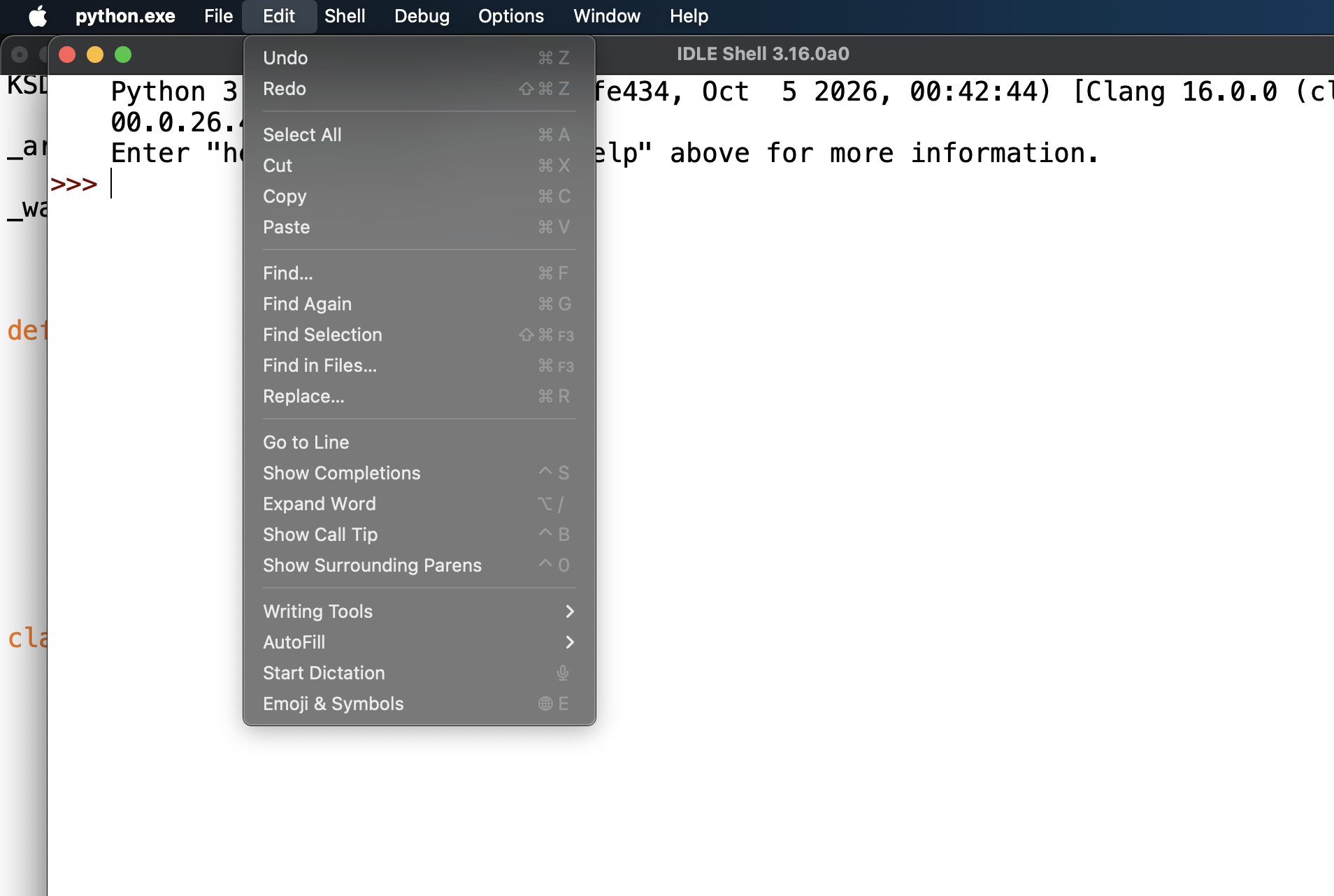 Go to Symbol menu option is not visible in the shell
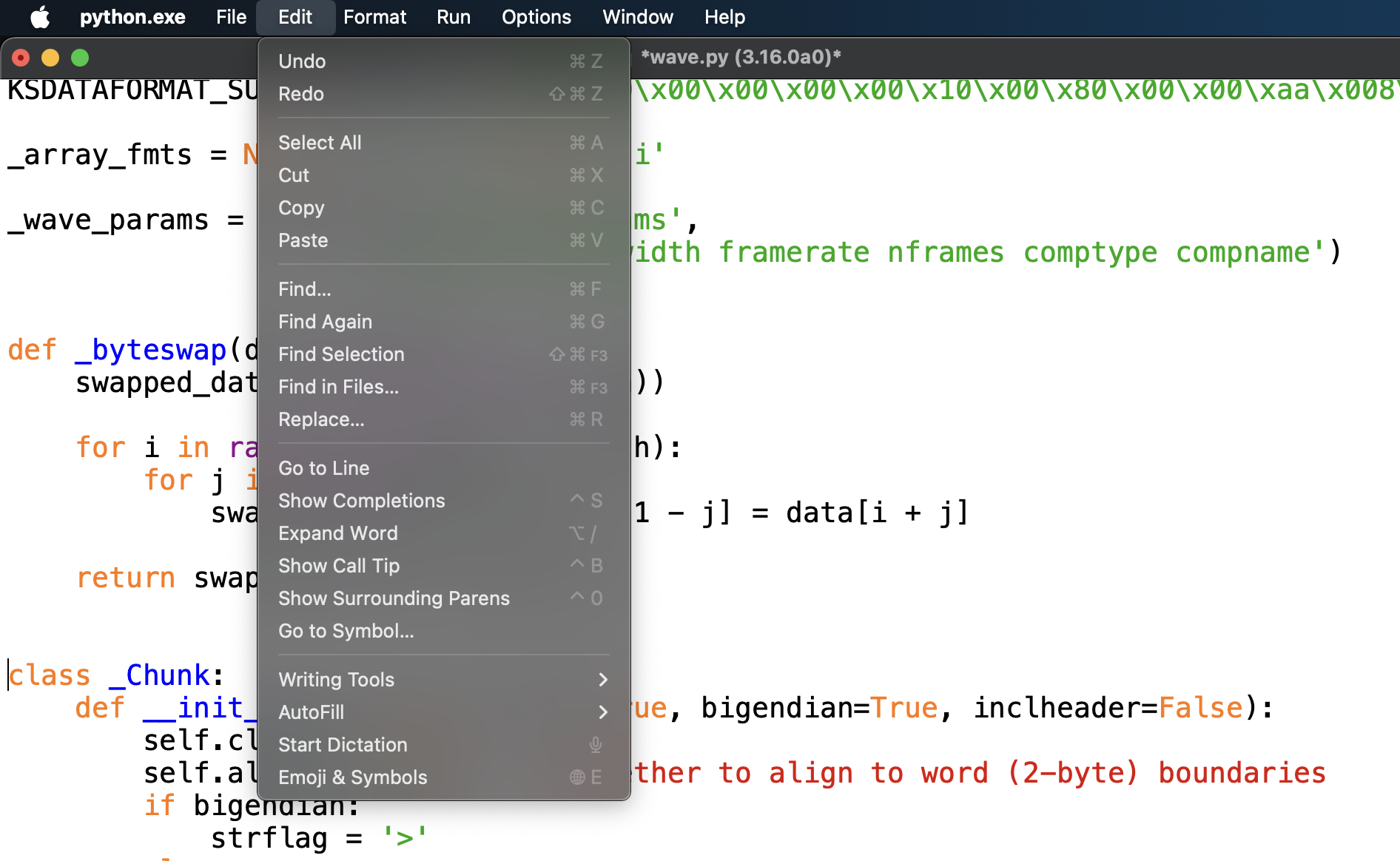 Go to Symbol menu option is visible in editor
When the user invokes Go to Symbol, a dialog should appear containing a scrollable list of symbols defined in the current editor window. There will be many ways to implement this dialog box and scrollable list. It is okay if your UI does not look exactly the same as the reference, provided below, so long as all required components are included. We recommend that you explore existing components before creating your own Tkinter canvases from scratch. Whatever you choose, justify your design choices in design.md.
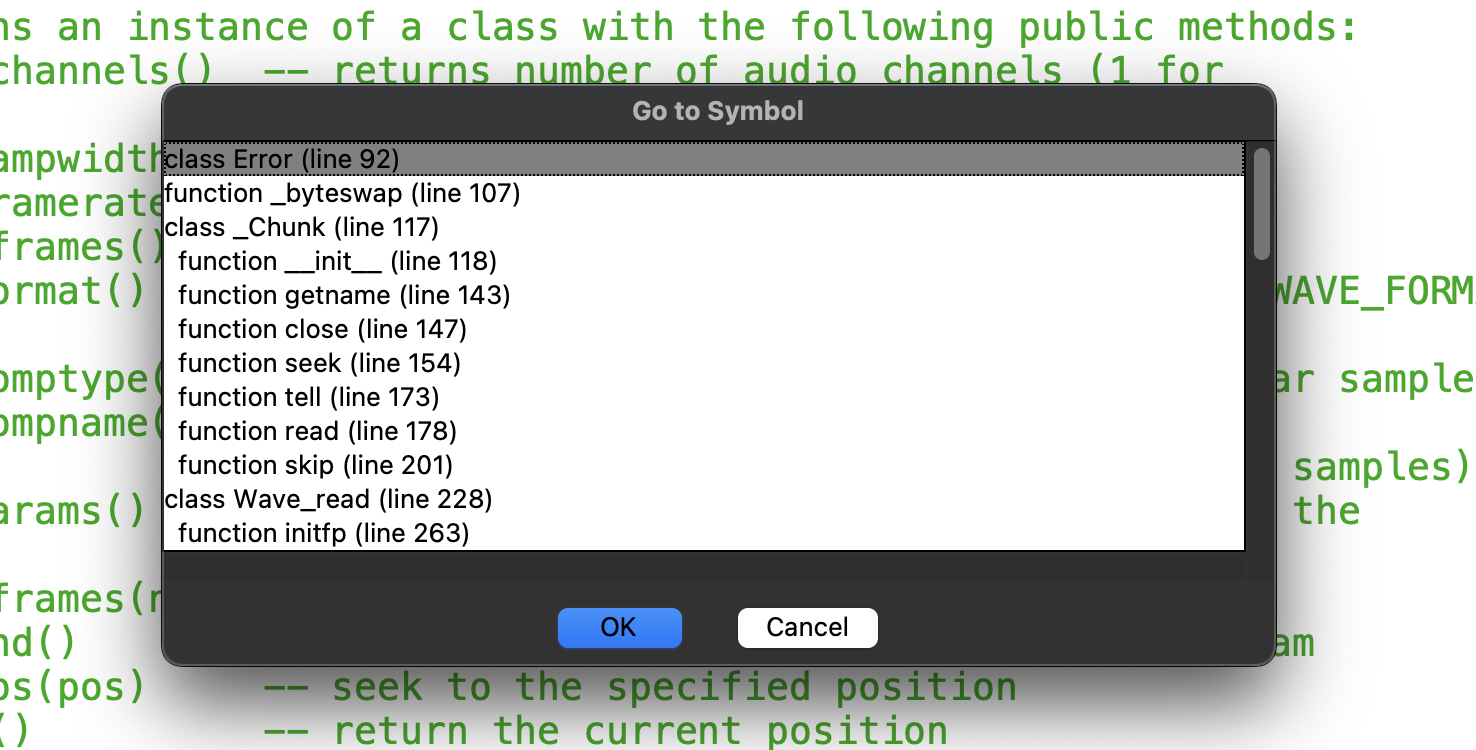 Sample Go to Symbol dialog popup
Required Features
Your implementation should satisfy the following requirements to receive full credit for this assignment.
- Symbol list: Display class and function definitions from the current editor window, including methods defined inside classes. You do not need to include symbols imported from other modules. Allow the user to navigate the list with the up/down arrow keys or by scrolling. Double-clicking an entry, pressing Enter, or clicking an Ok button should navigate to the corresponding definition in the editor.
- Navigation: Once the user makes the selection, the editor cursor should move to the beginning of its definition. If the definition is not currently displayed on the screen, it should also scroll to the definition.
- Dialog behavior: Pressing Escape or a cancel button should close the dialog. After a symbol is selected, the dialog should close and the editor should move to the beginning of the line with that symbol’s definition.
- Edge cases: Think of edge cases and list them in your process journal. Tell us how you handled each one. If handling an edge case was a design choice, explain why in
design.md. (Hint: To get you started, think about how to handle empty files. Sometimes, there may be code with no functions or classes. Think about how you want to handle such an edge case and defend your reason for making that design decision) - Unit tests: After implementing your feature, run the existing idlelib tests. If your changes break any existing tests, determine why and modify the affected tests when the expected behavior has intentionally changed. Do not simply delete or disable failing tests. You must also add new tests for your Go to Symbol implementation, including tests for normal behavior and edge cases you chose to support. Put your new tests in
Lib/idlelib/idle_test/, in atest_*.pyfile like the existing ones. You can run a test file with./python -m unittest idlelib.idle_test.test_<yourmodule>. All relevant existing and newly added tests should pass in your final submission.
Optional Features
Completing the following optional feature will have no impact on your final assignment grade, but we encourage you to try it out!
- (OPTIONAL) Add a user-configurable key binding (i.e., there should be a keyboard shortcut to invoke the Go to Symbol option). You are free to choose which specific keyboard shortcut you choose to attach to your added feature.
Submission
Review this table for assignment deadlines.
For the initial PR submission, create a folder called Assignment2 at Lib/idlelib/Assignment2/. In this folder, add 2 documents: your process journal (journal.md) and your design document (design.md). The instructions are on the A2 Process Journal and Design Document pages. Then open a pull request, but do not merge it. Use the template here.
This is one pull request for the whole assignment. After the code review, you push new commits to the same assignment2 branch, and the pull request updates itself. The “final PR” deadline is the deadline for those commits.
Open the pull request in your pair’s repository, with main as the base branch and assignment2 as the compare branch. Do not open a pull request against the course template repository or against python/cpython.
After the initial PR submission deadline, each student will be assigned to review another pair’s submission, so your pair will review two other pairs’ submissions in total. Instructions can be found here. Your tutor will post the GitHub usernames of the code review assignments and you will be added to the appropriate repositories as Readers so you can provide your review.
Using that feedback, fix your initial PR as necessary, adding new commits to the assignment2 branch. You will also prepare a ~10 minute presentation about your submission for team meetings, which will be graded on how you communicate your implementation and design decisions, not the technical excellence of the implementation itself. Use the A1 presentation guidelines for the plan and tips. Also say how you split the driver and navigator roles and what you learned from working that way.
Each student is graded separately for collaboration and communication, so partners may receive different scores in those categories. The technical score is the same for both partners if both have contributed satisfactorily to the technical work; otherwise, technical scores may differ. See the Sample Rubric for the grading rubric used for this assignment.
See the syllabus for the full late and missed-work rules.