A1: The IDLE Development Environment & Go To Line
Before you start: fill out the Google Form linked in this Ed post so we can add you to the course GitHub organization. Once you have been added, create your repository exactly as described in Creating Your Repository. Do not fork the course repository, and do not make your repository public. Not following these instructions is an academic integrity violation.
Due dates
| Step | When |
|---|---|
| Released | Wed Sep 30 |
| Initial PR due | Wed Oct 7 |
| Peer code review due | Fri Oct 9 |
| Final PR due | Mon Oct 12 |
| Presentation and tutor discussion | Team meeting, Mon 10/12 - Wed 10/14 |
What you will turn in
- Your pair’s private repository in the course organization, set up as described in Creating Your Repository.
- A working
Go To Linefeature on theassignment1branch (Part 2). - A design document (
design.md) and a process journal (journal.md) inLib/idlelib/Assignment1/. - One pull request in your pair’s repository, opened by the initial PR deadline. Do not merge it.
- One peer code review by each student of another pair’s pull request (two reviews total per pair).
- Your final commits to the same pull request, after you address the review comments you received.
- A ~10 minute presentation at your team meeting.
See Submission for details and grading.
Foreword
One goal of this course is to teach you to read documentation well. So this document does not give detailed step-by-step instructions for setting up IDLE, as you may be used to from earlier classes. File paths and commands may be slightly off and need editing. You may also need to run commands that are not listed here. Use the documentation and the other resources this course allows to fill in the gaps. Chat tools like ChatGPT and Gemini are allowed only to look up documentation, such as how a Python feature works or a tkinter tutorial. You may also ask them to explain existing IDLE code you are reading. Do not use them, or any AI tool, to help with your code changes. See the AI / LLM policy.
Required: You must keep a process journal about your experience during this assignment. Record your thought process, the challenges you hit, and how you overcame them. See the submission instructions for details.
Part 1: The IDLE Development Environment
Summary
The source code for IDLE is located within the official CPython repository, which is the reference implementation of the Python programming language. Since we would like to avoid working directly on our operating system’s installation of Python1, we will create our own working copy of Python as the foundation of our development environment.
This guide was created with the author’s experience from creating a development environment on the following setup:
- Ubuntu 22.04 LTS
- gcc 11.3.0
- Visual Studio Code
- git 2.34.1
For the most part, we will be referring to Python’s own Developer’s Guide. We will highlight the most relevant sections of the official documentation, as well as the order in which you should follow them. This document assumes reasonable familiarity with Python, git, and the command line interface in a UNIX-based environment such as Linux or MacOS.
IMPORTANT:
If you have a Windows machine, it is required that you install Windows Subsystem for Linux (WSL 2) so you can work in a UNIX- based environment. The staff members will not be able to provide support for students working in a native Windows environment.
Downloading the Codebase
The first step is to download the source code for CPython onto your machine for local development.
Instead of following the official Python developer’s guide, we have created our own copy of the CPython code base for this course: cse190largecodebasesfall2026/homework-assignments-cpython. You will make your pair’s own private copy of it from this template.
Note: Do NOT follow the “Get the source code” section of the official Python Developer’s Guide! Use your pair’s repository instead.
Creating Your Repository
Both partners must first fill out the Google Form in this Ed post and be added to the cse190largecodebasesfall2026 GitHub organization. Accept the invitation GitHub emails you. You cannot create your repository until you are a member.
Then one student from each pair creates your pair’s repository from our course template. Do not click Fork. A fork of the course repository cannot be made private, and your repository must be private.
-
Open the course template repository: cse190largecodebasesfall2026/homework-assignments-cpython. Check that the top left of the page says
cse190largecodebasesfall2026 / homework-assignments-cpythonand that the repository is labeled Public template.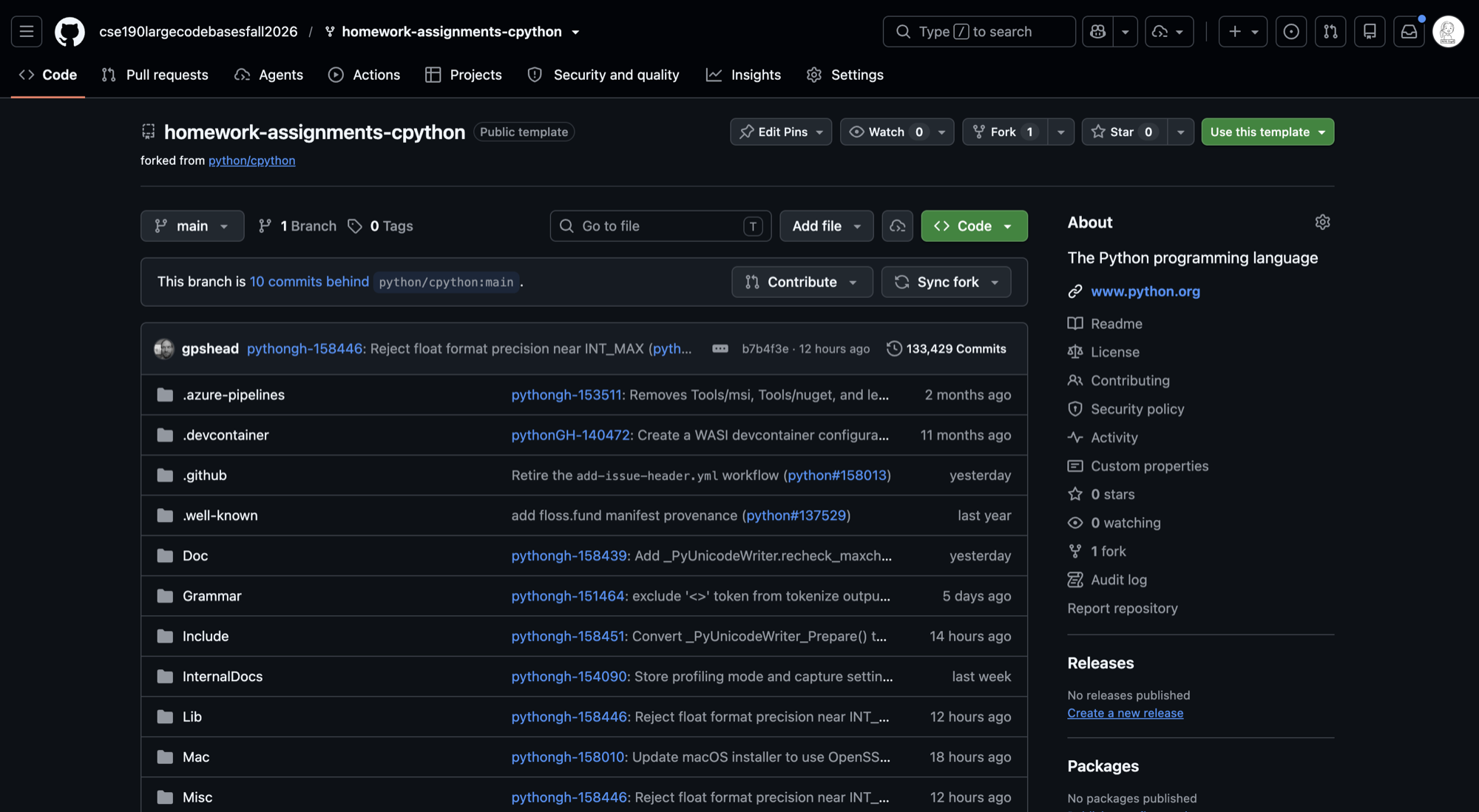
-
Click the green Use this template button at the top right of the page. Do not click Fork or Code.
-
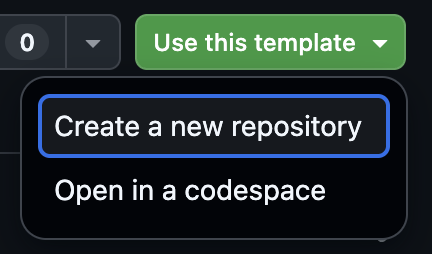
In the menu that opens, choose Create a new repository. Do not choose Open in a codespace.
- On the Create a new repository page:
- Leave Include all branches set to Off. You only need the
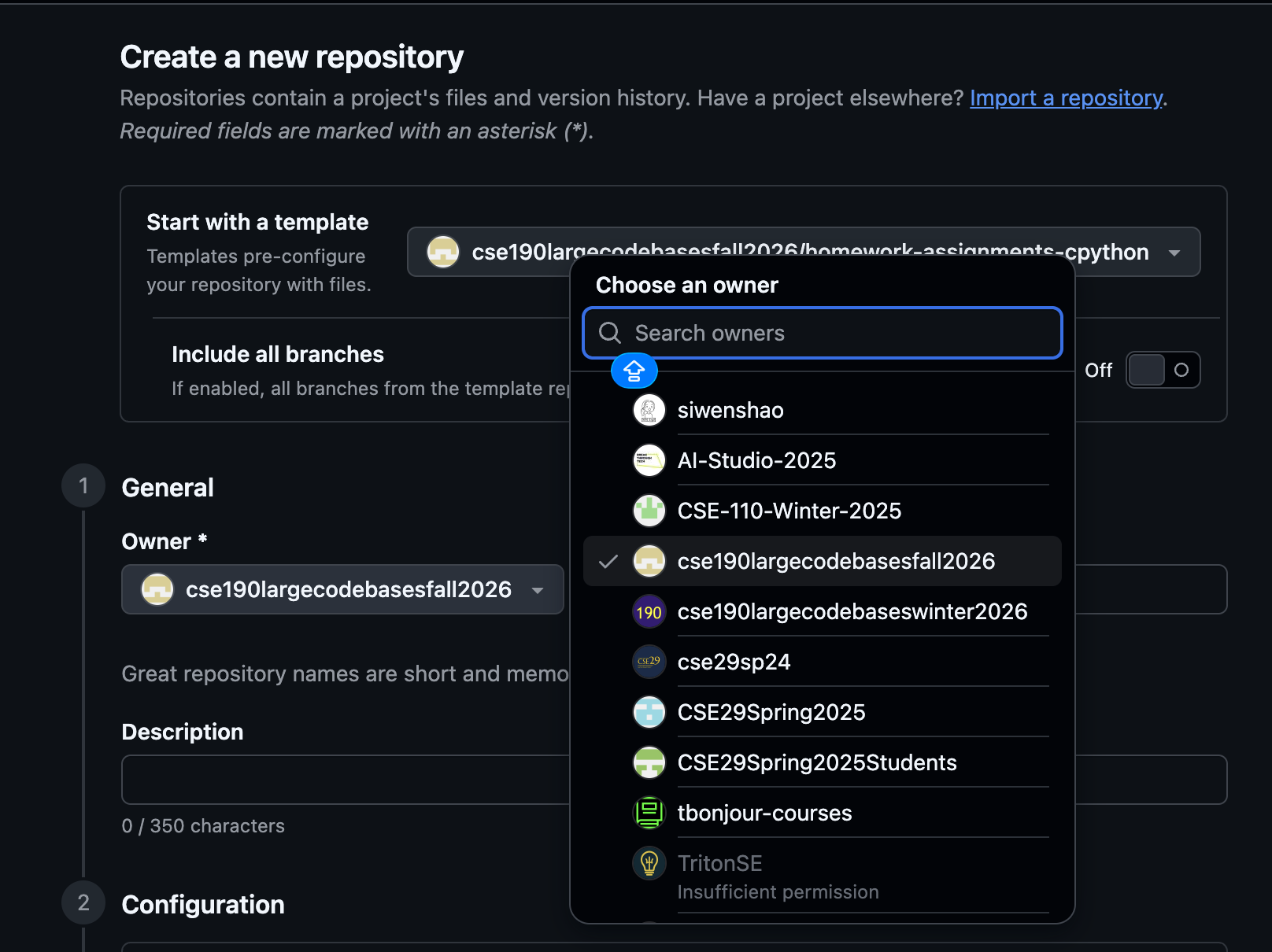
mainbranch. - Under General, open the Owner menu and choose cse190largecodebasesfall2026. Do not choose your own GitHub username. If the organization is not in the list, you have not been added to it yet. Check that you filled out the form and accepted the email invitation.
- Name the repository
idlelib-[person1_githubusername]-[person2_githubusername], using your own GitHub username and your partner’s. For example, if your usernames arealiceandbob, name itidlelib-alice-bob. The description is optional.
- Leave Include all branches set to Off. You only need the
-
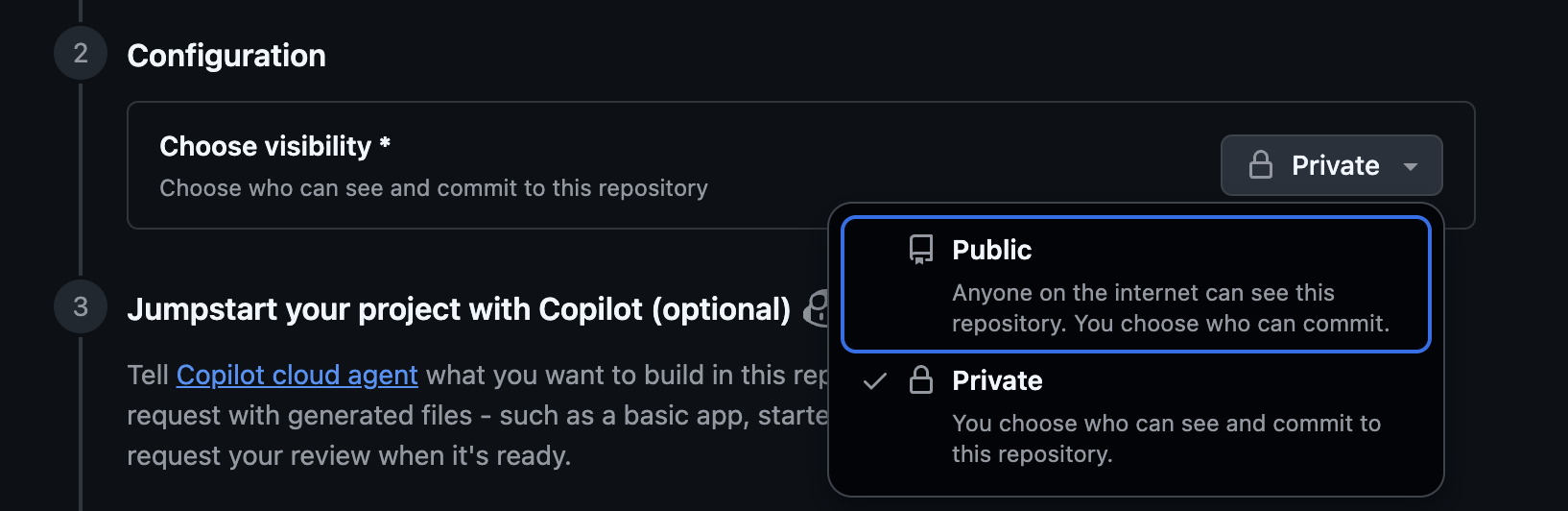
Under Configuration, set Choose visibility to Private. Do not choose Public. You can skip the optional Jumpstart your project with Copilot section.
-
Click Create repository at the bottom of the page.
When you are done, check your new repository’s page. Its address should start with github.com/cse190largecodebasesfall2026/, and it should have a Private label next to its name. If either one is wrong, tell your tutor right away.
Next, add your partner to the repository. In your repository, go to Settings, then Collaborators and teams, and add your partner as Admin. Your partner will get an email invitation from GitHub. They must accept it within 7 days, before they can push to your repository.
Cloning Your Repository
You and your partner should each use git to clone your pair’s repository to your own machine. Do not clone the course template repository directly. Because your repository is private, GitHub will ask you to sign in when you clone. Use SSH or a personal access token, since GitHub does not accept your account password on the command line.
If you do not have git installed: follow this guide.
Building Your Own Python
Before compiling our Python interpreter from the source code, we will need to install some additional OS dependencies for certain modules to work properly. The most important one we need is the tkinter package2. To install them on your system, follow this section of the official guide:
Now that the necessary dependencies have been installed, we can go ahead and build our working copy of Python. Follow this section of the official guide:
For now, you can stick to the default configuration flags recommended by the guide.
Note that since we have already installed all the necessary dependencies, you should not see the list of extension modules that have not been built as mentioned in the guide. Instead, you should see something like:
Note: Deepfreeze may have added some global objects,
      so run 'make regen-global-objects' if necessary.
Checked 111 modules (30 built-in, 80 shared, 1 n/a on linux-x86_64, 0 disabled, 0 missing,
0 failed on import)
Your numbers and version will differ. What matters is that you see 0 missing and 0 failed on import.
Once you have the “working build” as mentioned in the documentation, you should run it to check that you have indeed successfully built Python with the extension modules. For example, to check for the tkinter module, run the compiled Python interpreter in the terminal, and try–
$ ./python
Python 3.16.0a0+ (heads/main:2cdc518, ...) [GCC 11.3.0] on linux
Type "help", "copyright", "credits" or "license" for more information.
>>> import tkinter
>>>
If all went well, you should be able to successfully import the tkinter module without any exceptions thrown.
Running IDLE
Once all that is set up, you can now run IDLE with your own Python that is separate from the OS version. Navigate to the idlelib-[person1_githubusername]-[person2_githubusername] repository where your python executable is, and start IDLE from the terminal like so:
$ cd ~/idlelib-[person1_githubusername]-[person2_githubusername]  # go to your cloned repo
$ ./python -m idlelib
You should now see the IDLE program starting as it normally would.
Note: If you are running python -m idlelib (without the ./), chances are that you are running a version of Python different than the one you built from source. Make sure you are running the version built in the repository!
Setting Up Your Editor
For this course, follow this guide to set up Visual Studio Code as your primary editor.
Visual Studio Code (VSCode) has in recent years become one of the most popular code editors in the industry.
One of the many reasons for its enormous popularity is its extensive support for a wide range of programming languages through extensions. For Python development, the Python extension is highly recommended and is almost a necessity for working with large code bases3.
Once you have VSCode and the Python extension installed on your machine, you can navigate to the directory where you cloned the CPython repository, and open the directory containing the source code for IDLE: idlelib-[person1_githubusername]-[person2_githubusername]/Lib/idlelib.
The first thing you should do is set the Python interpreter for your workspace. You should set the Python executable you just compiled in the idlelib-[person1_githubusername]-[person2_githubusername] repository as the interpreter. (Use the “Enter interpreter path…” option here, since our own copy of Python likely won’t show up as one of the defaults, which include your system’s global Python installations.)
Once the interpreter is set, you should see the change reflected in the status bar at the bottom of the VSCode window. The Python version displayed there should be the same as if you ran ./python --version with your own Python executable in the idlelib-[person1_githubusername]-[person2_githubusername] directory, something like:
$ ./python --version
Python 3.16.0a0
Part 2: Go To Line
Now that you have your own copy of IDLE running, you can start making changes to the source code!
Motivation
Our marketing team has just conducted extensive user testing of developers that use IDLE. One of the main issues identified by our team involved the Go To Line feature found under Edit when the Python Editor Window is open.
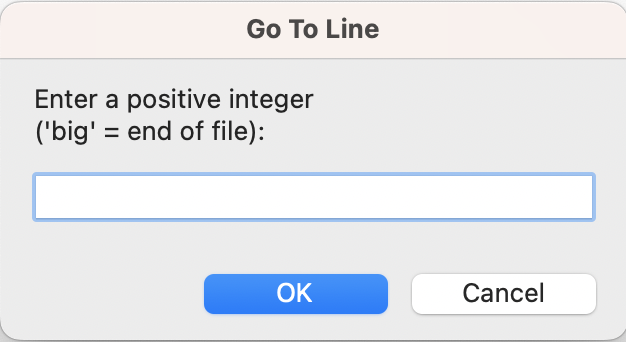
Users reported being confused about what big meant (whether it meant they should type in the word big or type in a big number). We would like you to update the Go To Line popup to fix this issue.
Our competitors, such as VS Code, have an effective implementation of such a feature. When the user sees the popup for Go To Line, the maximum allowed input (i.e., the number of lines within a file) is shown to the users.

Task
Specifically, edit the Go To Line popup to fulfill these requirements:
Required Features
You must implement the following features on a new branch titled assignment1 to receive full credit for this assignment.
Create the branch before you start changing code, and push it to your repository so you can open a pull request from it:
$ git switch -c assignment1
$ git push -u origin assignment1
After that, git push sends new commits to the same branch.
- Show the user their current line number in the
Go To Linepopup. The VS Code screenshot above is an example. - Show the range of allowed values in the popup, so users know the total number of lines. You choose the exact wording, but it must say that a user can enter a number between 1 and N or between -N and -1, where N is the number of lines in the file.
- If the user enters a number larger than N, show this error message in red text in the popup:
Enter a number between 1 and N, inclusive - Support negative numbers by counting from the end of the file. For example, -1 goes to the last line and -2 goes to the second-to-last line. If the number is too negative (before the first line), show this error message in red text in the popup:
Negative entries must be between -N and -1, inclusive
In both messages, N is the number of lines in the file. Use the exact text above, with no period at the end.
For any other input, such as 0, letters, or an empty box, keep IDLE’s existing behavior.
Optional Features
Completing the following optional features will have no impact on your final assignment grade, but we encourage you to try them out!
- (OPTIONAL) Allow entries for the
Go To Linepopup to be formatted likeX:YwhereXis the line number andYis the column (character) number within that line. - (OPTIONAL) Create some other custom enhancement to the feature that you think can help us stand out from our competitors! It can be a visual enhancement, an additional input that is accepted, etc.
Submission
Review this table for assignment deadlines.
For the initial PR submission, create a folder called Assignment1 at Lib/idlelib/Assignment1/. In this folder, add 2 documents: your process journal (journal.md) and your design document (design.md). The instructions for these are under the “Assignments” heading on the left. Then open a pull request, but do not merge it. Use the template here. If you have not opened one before, see GitHub’s guide.
This is one pull request for the whole assignment. After the code review, you push new commits to the same assignment1 branch, and the pull request updates itself. The “final PR” deadline is the deadline for those commits.
Open the pull request in your pair’s repository, with main as the base branch and assignment1 as the compare branch. Do not open a pull request against the course template repository or against python/cpython.
After the initial PR submission deadline, each student will be assigned to review another pair’s submission, so your pair will review two other pairs’ submissions in total. Instructions can be found here. Your tutor will post the GitHub usernames of the two pairs who will review you. Add those students as collaborators on your repository, the same way you added your partner. Give your reviewers Read access.
Using that feedback, fix your initial PR as necessary, adding new commits to the assignment1 branch. You will also prepare a ~10 minute presentation about your submission for team meetings, which will be graded on how you communicate your implementation and design decisions, not the technical excellence of the implementation itself.
[Updated on 10/9/2026]
Presentation Guidelines
Your presentation is about 10 minutes. Your tutor will ask questions after. Both partners present. Both partners should be able to answer questions about any part of the work.
We grade how clearly you explain your work and your design decisions. We do not grade how hard or complex your code is. A simple change that you explain well is better than a hard change that you cannot explain.
A plan you can follow:
- Purpose (1 min). What does the feature do? Who uses it?
- Where the code is (2 min). Which files, classes, and functions matter? Show them in a simple diagram. Do not show a lot of code.
- How it works (3 min). Walk through what happens from the user’s action to the result. Say what each arrow means and what happens in each function call.
- Your choices (3 min). What did you change and why? What other ideas did you think about? What would you do differently?
- What surprised you (1 min). What did you get wrong at first? How did you find the code you needed to change?
Diagrams. A simple sequence diagram is a good way to show how the feature works. A sketch with boxes and arrows for the files, classes, and functions also works. You can use a UML class diagram if it helps, but you do not have to.
Tips:
- Show a demo if you can. It is the fastest way to show what your feature does.
- Show only the small parts of code that you need. Do not read code line by line.
- Each partner should talk about a part they know well. Learn your partner’s part too.
- Practice once with a timer.
Grading
Each student is graded separately for collaboration and communication, so partners may receive different scores in those categories. The technical score is the same for both partners if both have contributed satisfactorily to the technical work; otherwise, technical scores may differ. See the Sample Rubric for the grading rubric used for this assignment.
See the syllabus for the full late and missed-work rules.
-
Python is an interpreted language, and many different versions of the Python interpreter may exist simultaneously in one system. Your operating system, particularly MacOS or Linux, likely comes with both a Python 2 and Python 3 interpreter installed. ↩
-
The tkinter package (“Tk interface”) is the standard Python interface to the Tcl/Tk GUI toolkit. Both Tk and tkinter are available on most Unix platforms, including macOS, as well as on Windows systems. ↩
-
Hey, that’s the name of this class! ↩